Monday, April 25, 2011
Dropbox authentication issues
There has been some discussion of whether the dropbox authentication system is a vulnerability, or just as insecure as everything else. At the very least: if changing your password doesn't change the underlying key stored on your machine, that an attacker could have copied, it makes denying access to an attacker post-compromise fairly difficult.

Wednesday, April 13, 2011
#ifdef DEBUG print statements in C
The #ifdef DEBUG design pattern for debug output is extremely common in C code. Here is a nice DEBUG macro I have used in the past:
As suggested in this post, letting the compiler see your debug code is important to ensure it isn't broken by people changing code without making debug builds. This macro achieves that goal by letting the preprocessor insert a statement that will be pulled out by the optimiser for non-debug builds. This is the best solution I have come across.
#ifdef DEBUG
#define DEBUG_PRINT(fmt, args...)  \
       fprintf(stderr, "%s:%d:%s(): " fmt, __FILE__, __LINE__, __FUNCTION__, ##args)
#else
#define DEBUG_PRINT(fmt, args...)    /* Don't do anything in non-debug builds */
#endif
As suggested in this post, letting the compiler see your debug code is important to ensure it isn't broken by people changing code without making debug builds. This macro achieves that goal by letting the preprocessor insert a statement that will be pulled out by the optimiser for non-debug builds. This is the best solution I have come across.
#ifdef DEBUG
#define DEBUG_TEST 1
#else
#define DEBUG_TEST 0
#endif

#define DEBUG_PRINT(fmt, args...) \
        do { if (DEBUG_TEST) fprintf(stderr, "%s:%d:%s(): " fmt, __FILE__, \
                                __LINE__, __FUNCTION__, ##args); } while (0)
Mingw example makefile for console app and DLL
Here is a basic Makefile to use with mingw to compile some common types of windows binaries - a windows console app, a non-console 'windows' subsystem app, and a DLL.
# Example mingw makefile

TARGETNAME=myapp

CC = i586-mingw32msvc-gcc

# A basic windows app (won't bring up a console window)
CFLAGS = -Wall -O -Wl,--subsystem,windows

# for debugging make this a console app (so we can write to stdout/stderr) easily;
# turn off optimisations and include symbols to help with running in a debugger
CFLAGS_DEBUG = -Wall -O0 -g -Wl,--subsystem,console -DDEBUG

# Create a dll instead of an exe
CFLAGS_DLL = -Wall -O0 -g -shared -Wl,--subsystem,windows -DDLL

# Any libraries you need - in this case wininet for communicating to the internet
LIBS = -lwininet

# Strip the binary for our prod build
STRIP = i586-mingw32msvc-strip

# UPX pack to minimise size for our prod build
UPX=upx -9

# Leave symbols, turn off optimisation, and send output to console
debug: $(TARGETNAME).c
        $(CC) -o $(TARGETNAME)_dbg $(CFLAGS_DEBUG) $^ $(LIBS)

# No debug symbols, debug statements removed, subsystem windows means we won't pop a window
$(TARGETNAME): $(TARGETNAME).c
        $(CC) -o $@ $(CFLAGS) $^ $(LIBS)

$(TARGETNAME).dll: $(TARGETNAME).c
        $(CC) -o $@ $(CFLAGS_DLL) $^ $(LIBS)

release: $(TARGETNAME)
        $(STRIP) $<
        $(UPX) $<
Using a word macro to run an executable on Windows 7, Office 2007
To write a macro in Office 2007, you'll want the developer tab in the ribbon. Turn it on by clicking the Office icon in the top left corner of Word and then 'Word Options'. Find the 'Show Developer tab in the Ribbon' and check it.
Use this macro code to run blah.exe when the document is opened (using AutoOpen):
Use this macro code to run blah.exe when the document is opened (using AutoOpen):
Private Declare Function WinExec Lib "Kernel32.dll" (ByVal lpCmdLine As String, ByVal nShowCmd As Long) As Long

Sub AutoOpen()

    Call WinExec("C:\blah.exe", SW_NORMAL)

End Sub
Sunday, April 3, 2011
Streaming internet radio with MythTV
Streaming internet radio with mythtv is, sadly, still confined to the realm of hacks. One simple solution is to just drop ".pls" files into your videos directory. Assuming you use mplayer to play your videos, that should just work. Unfortunately I like to use the internal player so I can use the time stretch feature on videos as well as recordings. The internal player doesn't play ".pls" files, so that option is out.
The other approach is to hack in a new menu item and get it to run mplayer. There are a few descriptions of how to do this, so here is my 2c.
Edit /usr/share/mythtv/themes/defaultmenu/library.xml to add:
And create inetradio.xml in the same directory. The Australian Broadcasting Corporation (ABC) links are a little hard to find - you can get them here.
And create /usr/bin/mythradio (this wouldn't be necessary if you could give multiple commands to "EXEC" - unfortunately it seems to break the syntax and mythtv says it is an invalid XML file). The include file is a one line mplayer config that tells mplayer to allow the screensaver to run, so you can avoid burn-in while listening to the radio.
and here is /etc/mythtv/mplayer_noscr.conf:
The other approach is to hack in a new menu item and get it to run mplayer. There are a few descriptions of how to do this, so here is my 2c.
Edit /usr/share/mythtv/themes/defaultmenu/library.xml to add:
<button>
    <type>MUSIC_RADIO</type>
    <text>Listen to Internet Radio</text>
    <description>Listen to Internet Radio</description>
    <action>MENU inetradio.xml</action>
    <depends>mythmusic</depends>
</button>
And create inetradio.xml in the same directory. The Australian Broadcasting Corporation (ABC) links are a little hard to find - you can get them here.
<mythmenu name="INETRADIO">

<button>
<type>MUSIC_PLAY</type>
<text>NPR</text>
<action>EXEC /usr/bin/mythradio http://npr.ic.llnwd.net/stream/npr_live24</action>
</button>

<button>
<type>MUSIC_PLAY</type>
<text>TripleJ</text>
<action>EXEC /usr/bin/mythradio http://www.abc.net.au/res/streaming/audio/aac/triplej.pls</action>
</button>

<button>
<type>MUSIC_PLAY</type>
<text>RawFM</text>
<action>EXEC /usr/bin/mythradio http://www.rawfm.com.au/stream/playlists/160kbitMP3.pls</action>
</button>

<button>
<type>MUSIC_PLAY</type>
<text>666 ABC Canberra</text>
<action>EXEC /usr/bin/mythradio http://www.abc.net.au/res/streaming/audio/aac/local_canberra.pls</action>
</button>

<button>
<type>MUSIC_PLAY</type>
<text>ABC Classic FM</text>
<action>EXEC /usr/bin/mythradio http://www.abc.net.au/res/streaming/audio/aac/classic_fm.pls</action>
</button>

<button>
<type>MUSIC_PLAY</type>
<text>Stop Playing</text>
<action>EXEC pkill -f mplayer</action>
</button>

</mythmenu>
And create /usr/bin/mythradio (this wouldn't be necessary if you could give multiple commands to "EXEC" - unfortunately it seems to break the syntax and mythtv says it is an invalid XML file). The include file is a one line mplayer config that tells mplayer to allow the screensaver to run, so you can avoid burn-in while listening to the radio.
#!/bin/bash
pkill -f mplayer
/usr/bin/mplayer -include /etc/mythtv/mplayer_noscr.conf $1 &
and here is /etc/mythtv/mplayer_noscr.conf:
stop-xscreensaver=no
Saturday, March 12, 2011
HOWTO Troubleshoot windows sound problems (for parents using google video chat)
The good people at google, have a nice parent-friendly intro to video chat. Unfortunately, getting to the point of having a gmail account with the plugin installed, is, in my experience, the easy part.
The bigger challenge is troubleshooting audio problems, and the google troubleshooting page doesn't offer much help, apart from a weird endorsement of Logitech products. For the people I chat with, the problem is usually a muted microphone, and/or muted sound. Instructions for modifying sound setup on Windows 7 are below.
Look at the bottom right corner of the screen for the speaker icon

Left click the speaker, and make sure the volume is turned up

Check if that solves the problem. If not, right click the speaker and choose playback devices

Click Properties
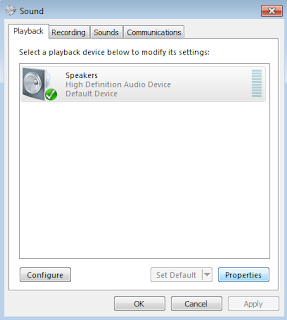
and check the slider is turned up on the Levels tab.


The bigger challenge is troubleshooting audio problems, and the google troubleshooting page doesn't offer much help, apart from a weird endorsement of Logitech products. For the people I chat with, the problem is usually a muted microphone, and/or muted sound. Instructions for modifying sound setup on Windows 7 are below.
Look at the bottom right corner of the screen for the speaker icon
Left click the speaker, and make sure the volume is turned up

Check if that solves the problem. If not, right click the speaker and choose playback devices
Click Properties

and check the slider is turned up on the Levels tab.

Click OK, and get out to the desktop.
Right click on the speaker again to check your microphone. Click recording devices.
The green bar should move up and down as it registers sound. Try talking.

If that all looks OK, google provides an interface for you to check your settings from within gmail.
Login and click on the settings link on the top right corner

Then click on the chat tab

and on the + sign next to "Verify your settings".

If you answer 'Yes' to all three questions in that box, and you still don't have working audio or video, you can tell the person on the other side that it is a problem on their end, and point them to these instructions :)
HOWTO Create multiple chrome and firefox profiles on linux
I like using multiple browser profiles for security reasons. I keep my valuable cookies, such as those for email etc. in one profile, and do regular web-browsing in another. This means if I hit a XSS through regular browsing, the scope for cookie stealing is limited. When using firefox with the noscript plugin it also makes sense to have different whitelists for these two usage scenarios.
Creating firefox profiles is simple, just use the profile manager, which you can bring up with:
Once you have created the profile, I copy the shortcut icon and change the target to point at the new profile like this:
Chrome is almost as easy, but the doco can be a little harder to find. You just need to specify a new user data directory like this:
and change your shortcut icon to run the same command.
On Ubuntu natty and oneiric this got harder with the new launcher. There are a lot of ways to get it done, but this seemed the simplest to me:
I also created a couple of (ugly) custom icons to keep my 'Browse' and 'Mail' profiles clearly marked.
Creating firefox profiles is simple, just use the profile manager, which you can bring up with:
firefox --no-remote -P
Once you have created the profile, I copy the shortcut icon and change the target to point at the new profile like this:
firefox %u --no-remote -P browse
Chrome is almost as easy, but the doco can be a little harder to find. You just need to specify a new user data directory like this:
/usr/lib/chromium-browser/chromium-browser --enable-udd-profiles --user-data-dir=.config/google-chrome/Browse
and change your shortcut icon to run the same command.
On Ubuntu natty and oneiric this got harder with the new launcher. There are a lot of ways to get it done, but this seemed the simplest to me:
sudo apt-get install alacarte gnome-panel
- Start "Main Menu" by searching for it in the dash.
- Add an item for your application and close the editor.
- Logout to refresh the dash (there must be a way to do this without a logout, but not sure what it is).
- Start the application by searching for it in the dash.
- Right-click on the icon and "Keep in launcher"
I also created a couple of (ugly) custom icons to keep my 'Browse' and 'Mail' profiles clearly marked.


Subscribe to:
Posts (Atom)